How I Built a Free Online Image Converter
I built Quick Pic Convert to give people a simple way to convert, compress, and edit images for free. Here is why I made it, how it works, and what I learned along the way.
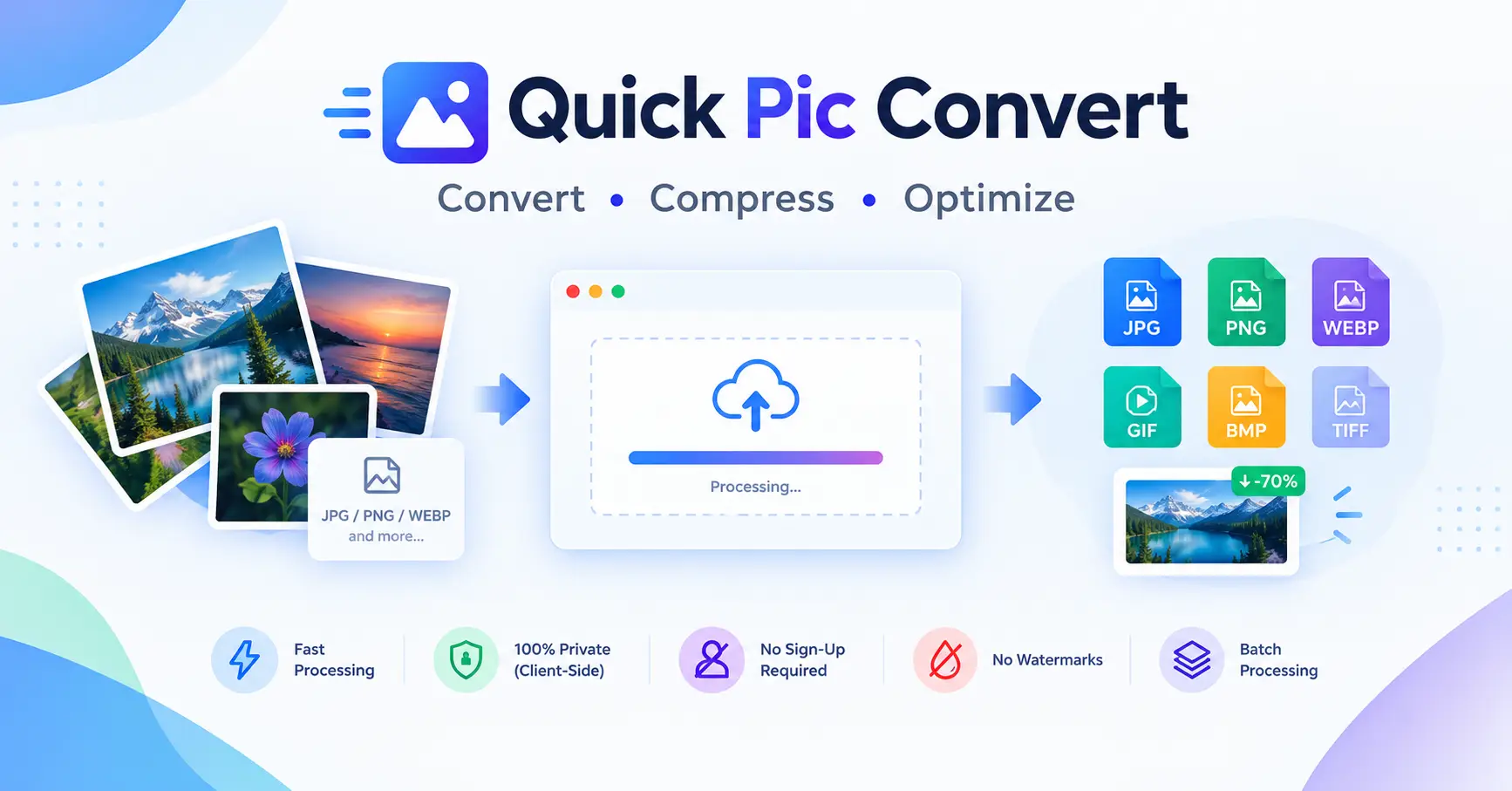
Almost everyone needs to change an image at some point. A form asks for a JPG, but your file is a PNG. A photo is too heavy to email. A website feels slow because the pictures are huge. I ran into these small problems again and again, and that is how Quick Pic Convert started.
Quick Pic Convert is a set of free online image tools. You open a page, add your picture, and download the result. There is no sign up, no watermark, and your files stay in your browser.
Why I Built It
When I looked for image tools online, I found the same issues on most sites. Some asked me to create an account. Some added a watermark to my photo. Some uploaded my files to a server, and I had no idea what happened to them after that.
I wanted something simple and honest. One tool for one job, fast, and private. That idea became QuickPicConvert.
What You Can Do With It
The site has 20 tools, and each one has its own page. Here are the main groups.
Convert images. You can change formats with the Image Converter, or use a direct tool like PNG to JPG, JPG to WebP, or WebP to PNG.
Edit images. You can compress an image, resize it, crop it, rotate it, or add a watermark.
Use developer and utility tools. There are tools like Image to Base64, Base64 to Image, an Image Color Picker, Image to Text, and an Image Metadata Reader.
How It Works
Every tool runs inside the browser. When you add an image, the work happens on your own device. The file is not sent to my server. This makes the tools fast, because there is no waiting for an upload, and it keeps your pictures private.
The Tech Behind It
QuickPicConvert is a React and Next.js website. The text on each tool page, like the guide, the FAQs, and the format comparisons, is managed in WordPress and loaded through a GraphQL API.
I chose this setup for one main reason. It lets me update the content of any tool page from the WordPress dashboard without touching the code. When I want to improve a page or fix a typo, I edit it in the CMS and it goes live. The code stays focused on the tools themselves.
How I Planned the Pages for SEO
A tool alone is not enough if nobody can find it. So every tool page follows the same plan.
- A clear heading and a short intro that explains what the tool does.
- Trust points near the top, like free, no sign up, and private.
- A simple step by step guide.
- A FAQ with real questions people search for.
- A section that explains the formats, for example PNG vs JPG.
- Use cases, so visitors can see who the tool is for.
- Links to related tools, so people can move from one page to the next.
This keeps each page useful for real people first. It also gives search engines enough content to understand what the page is about.
What I Learned
Building QuickPicConvert taught me a few things I now use in every project.
- Keep each tool focused. A page that does one job well is better than a page that tries to do everything.
- Privacy is a feature. People care about where their files go. Saying clearly that images stay in the browser builds trust.
- Content matters as much as code. A good tool with weak page content is hard to find. Writing clear guides and FAQs made a real difference to how the site is structured.
- A CMS saves time. Moving page content into WordPress made updates quick and kept the codebase clean.
What Is Next
I plan to keep adding useful tools and to improve the ones that already exist. I also want to publish more guides on the Quick Pic Convert blog about image formats, website speed, and how to prepare photos for online stores and social media.
Try It Yourself
If you need to convert, shrink, or edit an image, give Quick Pic Convert a try. You can browse all the tools on the tools page.