How to Set Up Auth for WordPress GraphQL in a Next.js Project
Learn how to set up auth for WordPress GraphQL in a Next.js project. This simple guide covers application passwords, JWT, and how to use your keys safely in API calls.
If you use WordPress as a headless CMS with Next.js, sooner or later you will need to fetch private data. Maybe it is draft posts, a preview page, or content only logged in users should see. Public data works without any login, but private data needs authentication.
In this guide I will show you how to set up auth for WPGraphQL and how to use your credentials safely inside Next.js. I will keep it simple and go one step at a time.
What You Need Before You Start
- A WordPress site running on HTTPS
- The WPGraphQL plugin installed and active
- A Next.js project (App Router in this guide)
- Basic knowledge of fetch and environment variables
Step 1: Install and Check WPGraphQL
In your WordPress dashboard, go to Plugins, then Add New, and search for WPGraphQL. Install it and click Activate.
After that, you will see a new GraphQL menu in the sidebar. Your endpoint will be:
https://yourdomain.com/graphqlOpen the GraphiQL IDE from the GraphQL menu and run a simple query to confirm everything works.

Step 2: Create an Application Password
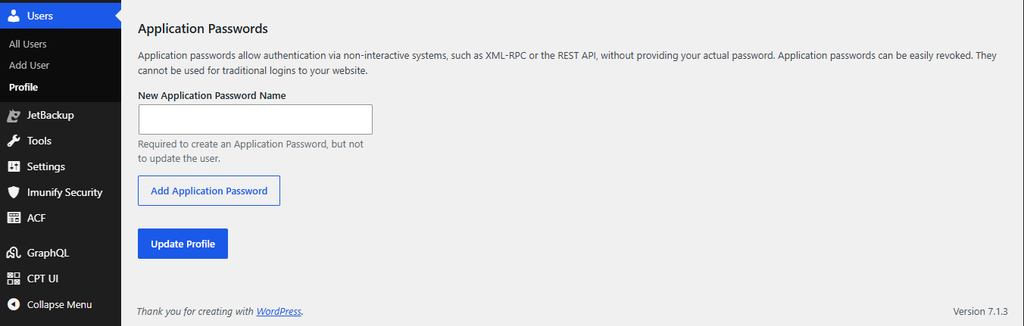
This is built into WordPress. It is the easiest choice when your Next.js server needs to talk to WordPress, for example to read drafts. Think of it as your API key.
- In WordPress, go to Users, then Profile
- Scroll down to the Application Passwords section
- Type a name like “Nextjs Frontend”
- Click Add New Application Password
- Copy the password right away. WordPress shows it only once
A tip from experience: create a separate user with only the role it needs, like Editor, instead of using your admin account. If the key ever leaks, the damage stays small.
Step 4: Store the Credentials in Environment Variables
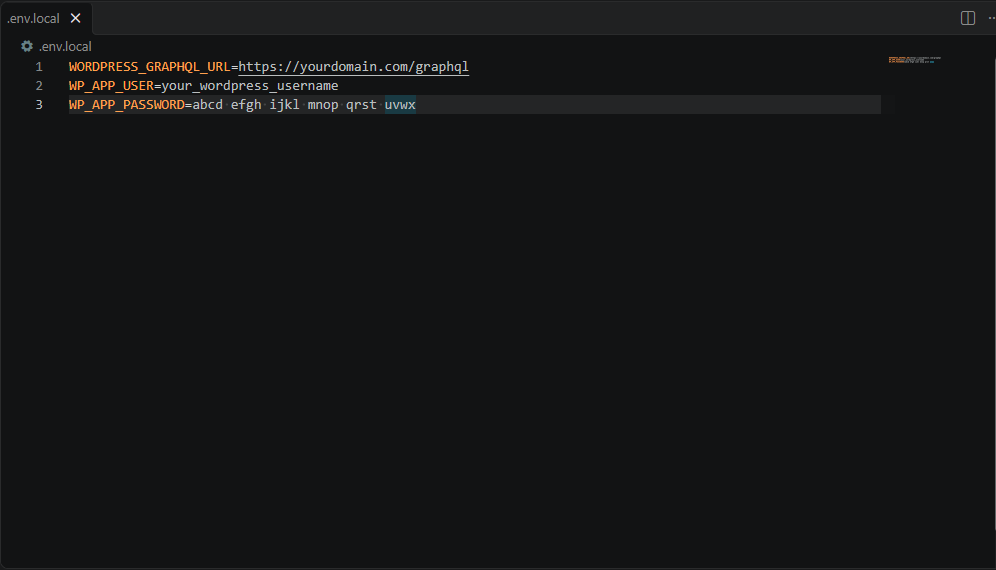
In the root of your Next.js project, open the .env.local file and add:
WORDPRESS_GRAPHQL_URL=https://yourdomain.com/graphql
WP_APP_USER=your_wordpress_username
WP_APP_PASSWORD=abcd efgh ijkl mnop qrst uvwx
Very important: do not add the NEXT_PUBLIC_ prefix to these names. Any variable with that prefix gets sent to the browser, and anyone can see it. Without the prefix, the value stays on the server only.
Also make sure .env.local is listed in your .gitignore file so it never goes to GitHub.
Step 5: Create a Helper Function for API Calls
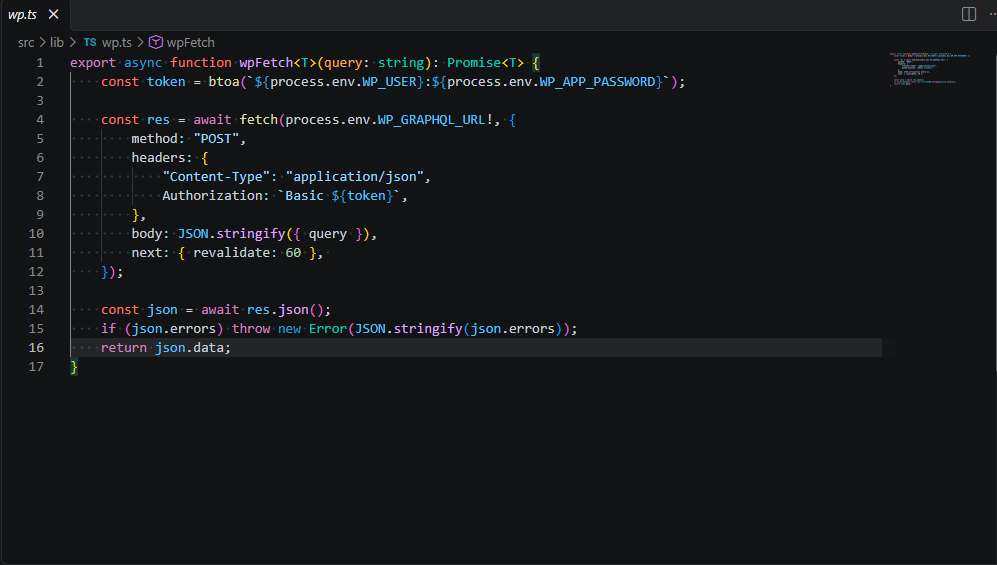
Instead of writing the same fetch code again and again, make one helper. Create a file at lib/wp.js:
export async function wpFetch<T>(query: string): Promise<T> {
    const token = btoa(`${process.env.WP_USER}:${process.env.WP_APP_PASSWORD}`);

    const res = await fetch(process.env.WP_GRAPHQL_URL!, {
        method: "POST",
        headers: {
            "Content-Type": "application/json",
            Authorization: `Basic ${token}`,
        },
        body: JSON.stringify({ query }),
        next: { revalidate: 60 },
    });

    const json = await res.json();
    if (json.errors) throw new Error(JSON.stringify(json.errors));
    return json.data;
}
Here is what this code does in simple words:
- It joins your username and application password, and turns them into a Base64 string.
- It sends that string in the Authorization header with the word Basic in front.
- WordPress reads the header, checks the user, and then returns data based on that user’s permissions.
- The
revalidate: 60line tells Next.js to refresh the cached data every 60 seconds.
Step 6: Use the Helper in a Page
Now let us fetch draft posts, which only logged in users can see. Create app/drafts/page.js:
import { wpFetch } from "@/lib/wp";

const QUERY = `
  query GetDrafts {
    posts(where: { status: DRAFT }) {
      nodes {
        id
        title
        slug
      }
    }
  }
`;

export default async function DraftsPage() {
  const data = await wpFetch(QUERY);
  const posts = data.posts.nodes;

  return (
    <main>
      <h1>Draft Posts</h1>
      {posts.map((post) => (
        <p key={post.id}>{post.title}</p>
      ))}
    </main>
  );
}
This is a Server Component, so the API call runs on the server. Your password never reaches the browser. If you run the same query without the auth header, WordPress returns an empty list. With the header, you see your drafts. That is how you know auth is working.
Common Mistakes to Avoid
- Using
NEXT_PUBLIC_on secret values - Using an admin account when an Editor account is enough
- Running your site on HTTP. Application Passwords need HTTPS on live sites
- Forgetting to add
.env.localto.gitignore - Calling private queries from client components, which exposes your keys
Final Thoughts
Setting up auth for WordPress GraphQL is not hard once you know the flow. Create an application password, keep it in a server only environment variable, send it in the Authorization header, and always make private calls from the server side of Next.js. If you need user logins, add JWT on top.
I hope this guide saved you some time. If you get stuck on any step, leave a comment and I will try to help.