Sending Push Notifications from Express.js with Firebase Admin SDK
Getting the frontend to receive notifications is only half the job. Here is how I set up my Express.js backend to actually send them using Firebase Admin SDK.
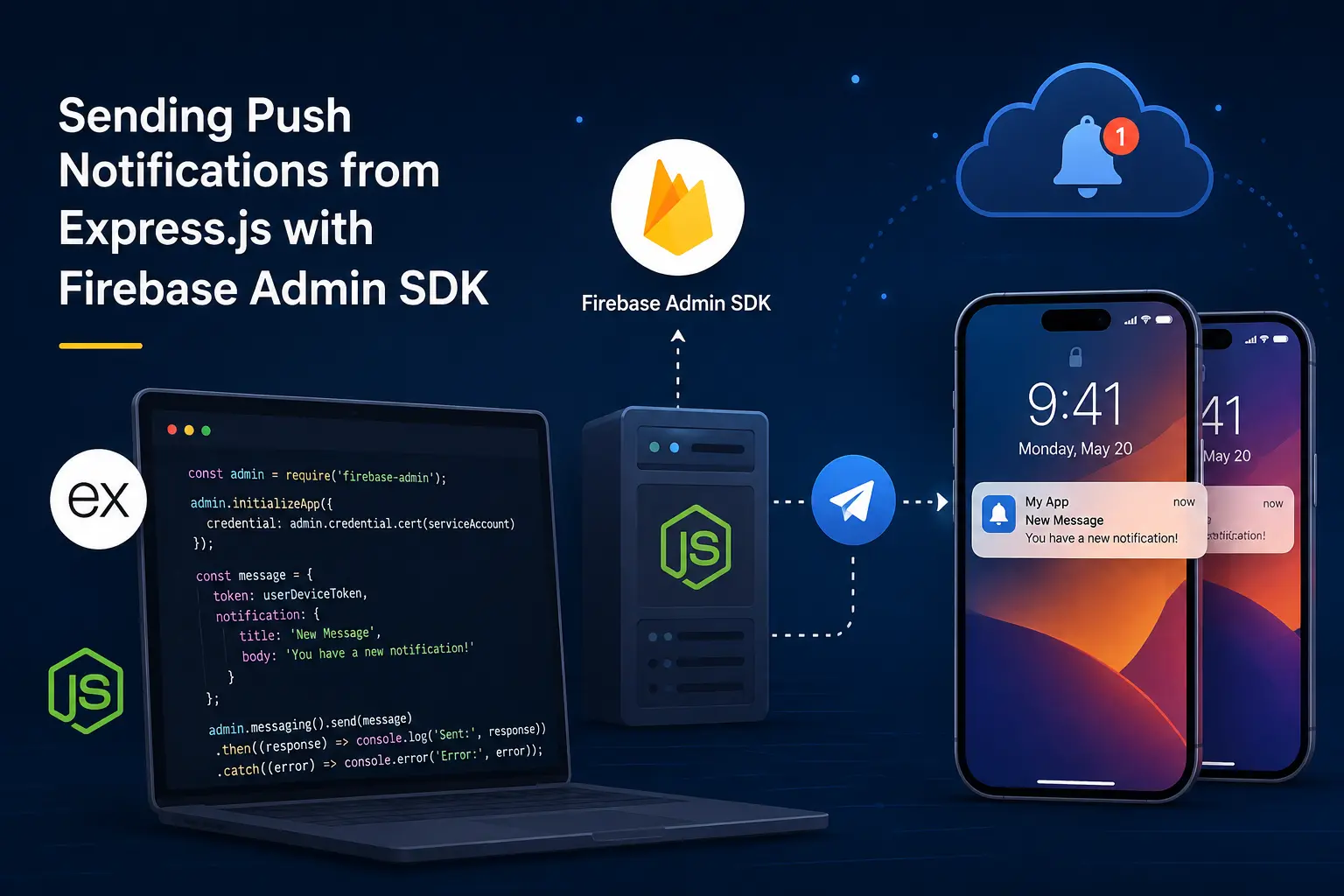
A practical guide on setting up your Express.js backend to send push notifications through Firebase Cloud Messaging, from the admin SDK setup to writing the actual send function.
If you read my last post on setting up Firebase Cloud Messaging in React Native, you already know how to get a device ready to receive notifications. But that is only one side of the equation. A phone sitting there with a token isn’t going to notify anyone by itself. Something has to actually send the message. That something, in most of my projects, is an Express.js backend.
This part is honestly a lot less painful than the mobile side. There’s no Gradle, no missing JSON files, no red screen of death. Once you have your service account key from Firebase, you’re basically 15 minutes away from sending your first test notification.
What you need before you start
Before writing any code, go to your Firebase Console, open your project settings, and go to the Service Accounts tab. From there, generate a new private key. This downloads a JSON file with your credentials. Do not commit this file to git. I’ve seen people push it by accident and it’s not a fun cleanup.
You’ll need three values out of that file:
project_idprivate_keyclient_email
I keep all three in a .env file rather than reading the JSON file directly, mostly because it plays nicer with how I deploy things. If you’re on a platform like Render or Railway, you’ll be pasting these into environment variables anyway, so it’s the same workflow either way.
Installing the admin SDK
You only need one package for this:
npm install firebase-adminNo extra dependencies, no messing around with different SDKs for different platforms. The same firebase-admin package handles Android and iOS tokens.
Initializing the app
This part trips people up more than it should, mostly because of one small detail: the private key. When you copy it from the .env file, the line breaks get turned into the literal characters \n instead of actual newlines. If you pass it to Firebase like that, initialization will fail with a vague error about invalid credentials. The fix is a simple .replace() call.
Here’s how I set it up:
javascript
require("dotenv").config();
var admin = require("firebase-admin");

admin.initializeApp({
  credential: admin.credential.cert({
    projectId: process.env.PROJECT_ID,
    privateKey: process.env.PRIVATE_KEY?.replace(/\\n/g, "\n"),
    clientEmail: process.env.CLIENT_EMAIL,
  }),
});
That ?.replace(/\\n/g, “\n”) line is doing the real work here. Without it, you’ll spend way more time debugging than the actual problem deserves. I learned this one the hard way after staring at a “failed to parse private key” error for way longer than I’d like to admit.
Writing the send function
Once the app is initialized, sending a notification is just a matter of building a message object and calling admin.messaging().send(). The message needs a notification object with a title and body, an optional data object for anything extra you want the app to handle on its own, and the device token you got from the frontend.
javascript
const sendTestPushNotification = async ({ title, body, data, fcm_token }) => {
  try {
    const message = {
      notification: {
        title,
        body,
      },
      data: data,
      token: fcm_token,
    };

    await admin.messaging().send(message);
  } catch (error) {}
};
A few things worth pointing out here. The data field is separate from notification on purpose. Anything inside notification is what shows up in the notification tray automatically, handled by the OS. The data field is for values your app needs internally, like a screen to navigate to or an ID to fetch. Also, data values have to be strings. If you try passing a number or an object directly, Firebase will throw an error, so stringify anything that isn’t already a string.
The fcm_token is the piece that connects this whole thing back to the React Native setup. Whatever device you want to notify, that’s the token you save from that side and pass in here.
Where this token actually comes from
In a real app, you’re not going to hardcode a token for testing forever. The usual flow looks like this: the app requests the FCM token on launch, sends it to your backend, and your backend saves it against that user in the database. Then whenever you need to notify that user, you just look up their saved token and call the send function above.
One thing to keep in mind, and I mentioned this in the React Native post too, tokens are not permanent. They refresh, sometimes for no obvious reason. So don’t just save it once and forget about it. Make sure your app updates the saved token whenever it changes, otherwise you’ll end up sending notifications into a void and wondering why your open rates dropped.
A basic error handling note
The example above has an empty catch block, which is fine for quick testing but you shouldn’t ship it like that. In a real backend, you’d want to at least log the error, and ideally check if the failure was because the token is no longer registered. Firebase will tell you when a token is invalid or expired, and that’s your cue to remove it from your database so you’re not repeatedly trying to send to a dead address.
Wrapping up
That’s really the whole loop. The React Native side handles getting permission and grabbing a token. The Express.js side takes that token and turns it into an actual notification on someone’s phone. Neither half is particularly complicated once you’ve done it once, but the small details, like that private key formatting, are usually what eat up your time the first time around.
If you haven’t already, it’s worth reading through the React Native setup guide first if you’re building this end to end. Once both pieces are in place, sending notifications becomes a pretty small function call away.